I’ve released a patch that supports (super)ultrawide in Costume Quest on Steam, and uncaps the framerate.
https://github.com/Grawler/CostumeQuestWidescreen
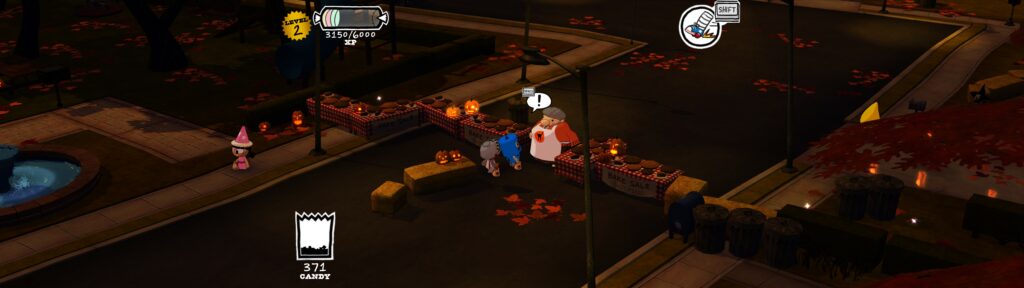
I’ve released a patch that supports (super)ultrawide in Costume Quest on Steam, and uncaps the framerate.
https://github.com/Grawler/CostumeQuestWidescreen

When you search for KOTOR mods, you’ll find an amazing list of recommended mods. And then it gives you the task to download about a hundred different mods and install them one by one. This will take you hours and it’s mindless and dumb work. I did most of the work for you.
Note that this are only modded files. This is not the full game. Go look somewhere else for that (like Steam or GOG).
Download the package here: Proton Drive | Google Drive | Dropbox
Extract these files to your swkotor directory (for example in your Steam folder). This will install most of the mods. Now all you have to do is run the following mods yourself:
– Widescreen stuff (optional)
– Galaxy Map Fix
– 4GB Patcher
And there you have it, a fully modded KOTOR without all the hassle. Here is a full list of mods included in this package:
KOTOR Dialogue Fixes
Character Startup Changes
Thematic KOTOR Companions
JC’s Minor Fixes
Ajunta Pall Appearance
KOTOR Community Patch
Droid Claw Fix
Ported VO Replacements
Ultimate Korriban
Ultimate Kashyyyk
Ultimate Tatooine
Ultimate Dantooine
Ultimate Endar Spire +
Ultimate Manaan
Ultimate Taris
Ultimate Character Overhaul
Ultimate Unknown World
Korriban Sith Art
Duncan on Manaan
Consistent Conditioning
HD Pazaak Cards
HD PC Portraits
PMHA05 HD
PMHA02 HD
PMHA01 HD
PFHC05 HD
PFHB02 Eye Fix
High-Poly Grenades
HD Gizka
Gammorean Reskin Pack
War Droids HD
HD Cleaning Droids
HD Jawas
HD Sand People
Better Twi’lek Heads
HD Twi’lek Females
Thigh-High Boots for Twi’lek
Shaleena/Lashowe Mouth Fix
Calo Nord Recolor
HD Darth Malak
CineMalak
Detran’s Darth Revan
Darth Bandon HD
HD Vrook
HD UI Elements
HD NPC Portraits
Male NPC Clothing
JAO
Juhani Cathar Head
Korriban: Back in Black
Cloaked Jedi Robes
JC’s Jedi Tailor
Cloaks with Shadows
Qel-Droma Reskin
Quanon’s HK-47
HD Sign Placeable
HD Kiosk
HD Desk
HD Escape Pod
HD Weapon Placeables
K2 Swoops to K1
HD Stun Batons
Unique Sith Governor
HD Ithorians
HD Duros
HD Quarren
HD Davik
HD Doctors
Kebla Yurt HD
HD Deadeye Duncan
N_oldAMH01 HD
HD Astromech Droids
HD Protocol Droids
Davik’s Trophies
HD Carth Onasi
HD Canderous Ordo
Quanon’s Canderous
Jolee HD
Fen’s Jolee
Zaalbar HD
Sith Uniform Reformation Revised
Star Map Revamp
Background Improvements
Kebla Yurt Renovation
Hi-Res Ebon Hawk
Ebon Hawk Repairs
HQ Cockpit Skyboxes
Yavin Station Hangar
Ebon Hawk Cockpit Upgrade I
Ebon Hawk Cockpit Upgrade II
Taris Reskin
High Quality Starfields
HQ Skyboxes II
Ebon Hawk Transparent Cockpit Windows
Hires Beam Effects
HD Fire & Ice
Animated Energy Shields
Animated Cantina Sign
Revamped FX
Terminal Texture
HD Workbench
Animated Swoop Monitors
Loadscreens in Color
Reflective Lightsaber Blades
Darth Malak’s Lightsaber
Blaster Visual Effects
Wookiee Warblade Fix
Kill The Czerka Guard
Korriban Workbench
Senni Vek Restoration
Male Twi’lek Diversity
Ixgil the Bith
Hidden Bek Control Room
Swoop Bike Upgrades
JCDE
JDR
Vision Enhancement
LDD
Balanced Pazaak
Camera Replacement
Rebalanced Grenades
HD Grenades & Mines
Ain’t No Air in Space
Party Conversations on the Ebon Hawk
Dark Sacrifice
Saber Throw Knockdown
Sunry Enhancement
Davik Slave Change
Taris Rapid Transit
Manaan Rapid Transit
Security Spikes for K1
HQ Blasters
Crashed Republic Cruiser
Trandoshans Rescaled
Custom Selkath Animation
Bastila Has TSL Battle Meditation
Sneak Attack Restoration
Sentinel Sneak Attack
Thematic The One
SAwL
Improved Cantina Sitters
HSI
BDB
Dueling Arena Adjustment
Bendak Non-Darkside Option
Kashyyyk Forcefield Rework
Swoop Platform Repair
Engine Lab Bench
Missing Lamps Fix
Czerka Business Attire
Sith Texture Restoration
Diversified Republic Soldiers
DJC
JRE
Dodonna’s Transmission
Endgame Hologram Fix
Twisted Rancor Trio Fix
Final Planet Hologram Fix
Droid Unique VO
Ajunta Pall’s Swords
Ajunta Pall’s Blade
JC’s Mandalorian Armor
Multifire & Autofire
Blaster Adjustment
HQ Gaffi Stick
HD Quarterstaffs
DTL
Logical Datapads
Realistic Visual Effects
Minor Music Tweaks
NPC Alignment Fix
Repair Affects Stun Droid
Alignment Affects Force Powers
Remove Duplicate TGA/TPC
Ultimate Character Overhaul Patches
Republic Soldier Fix
Republic Soldier’s New Shade
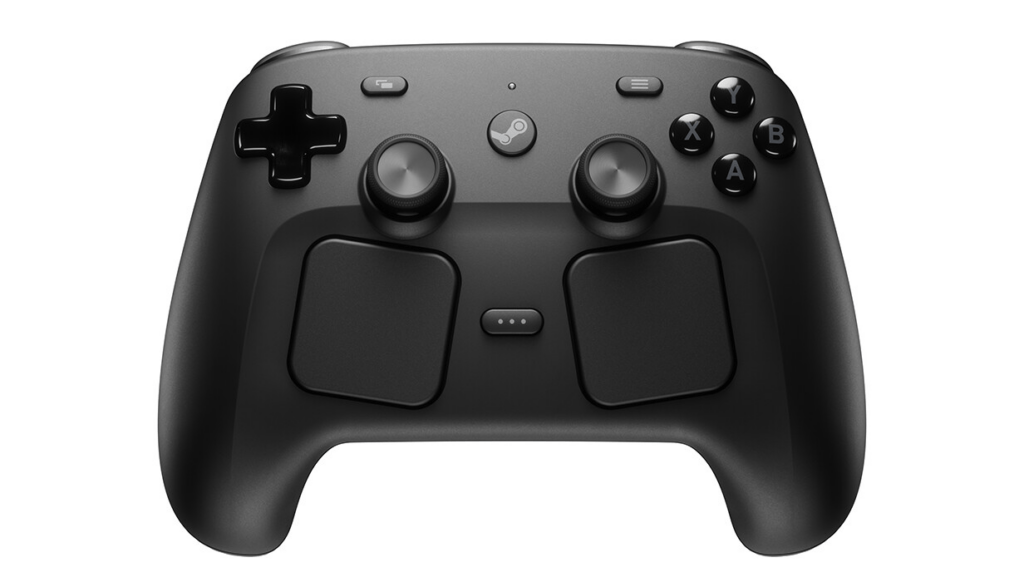
Did you get the new Steam controller before it was sold out? Lucky dog! So did I, though. And immediately I tried to play Final Fantasy 11 with it and found it that didn’t work. Right now, it’s not possible to properly use the Steam controller outside Steam. You’ll have to add the game to Steam as a non-Steam game, and then it works. But what about games that don’t work properly with Steam, like Final Fantasy 11? Luckily, people who are much smarter than me already figured out a way.
Update 24-5-26: Right now I recommend PadForge, which seems to be getting regular updates.
Not recommended:

Final Fantasy XI is old. It was released in 2002 on the PlayStation 2. While it had a lot of content added, it’s a very clunky experience in this day and age, especially compared to Final Fantasy XIV.
There are ways to make it a better experience, though.
The servers for this game are in Japan, which meant I was disconnecting at least once an hour. After I turned on a VPN to Japan (and set it to only use it for Final Fantasy 11), I haven’t had a single disconnect. Personally I’m using Proton VPN.
Next is installing a modern launcher, such as Windower or Ashita. I’m going to focus on the former, since I found it easier to work with.
If you enable Config in Windower, you can set some pretty good graphical changes once you’re in-game:
//config ClippingPlane 10
//config FrameRateDivisor 1
//config save
ClippingPlane sets the draw distance (1 is the game maximum, so 10 times that), FrameRateDivisor sets the fps to 60 (instead of 30) and save… well saves it.
Do yourself a favor and go to Config -> Misc 3 and enable Timer Display for Status Icons. It’ll show you how long a (de)buff will last.
If you set up 2FA for your account, you get an extra inventory bag.
Windower allows you to install add-ons and plug-ins. However, there are many more add-ons that aren’t in the master list. And some of those are pretty damn good.
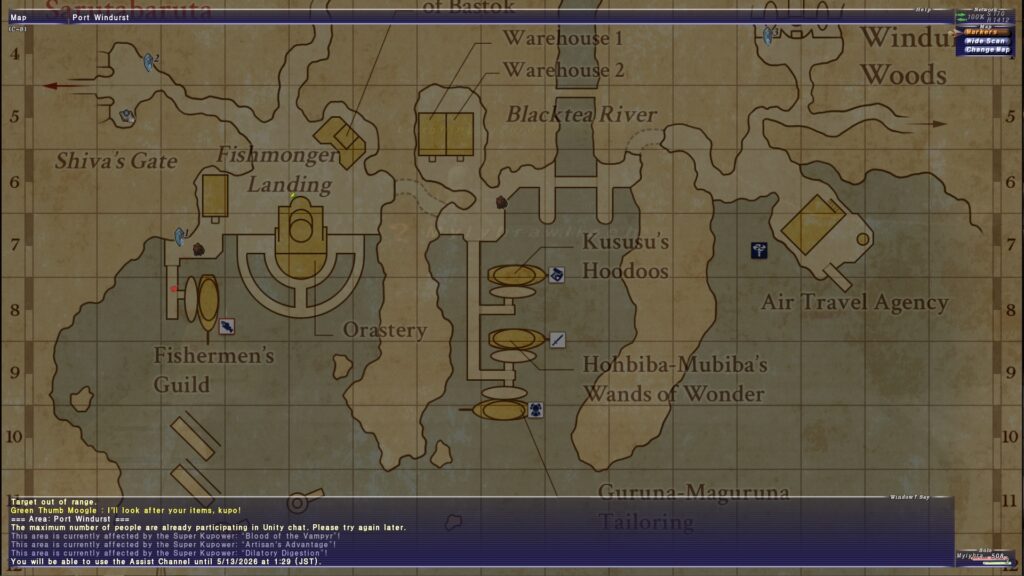
XIPivot allows you to load modified DAT files. This means that you can alter the game files without actually touching the original files. Combine this with HD textures (AshenbubsHD) and HD maps (Remapster) and you’ll have a much better looking game than you’d otherwise get. Especially the high-quality maps are amazing, because the original ones are just very low resolution and not the easiest to read.
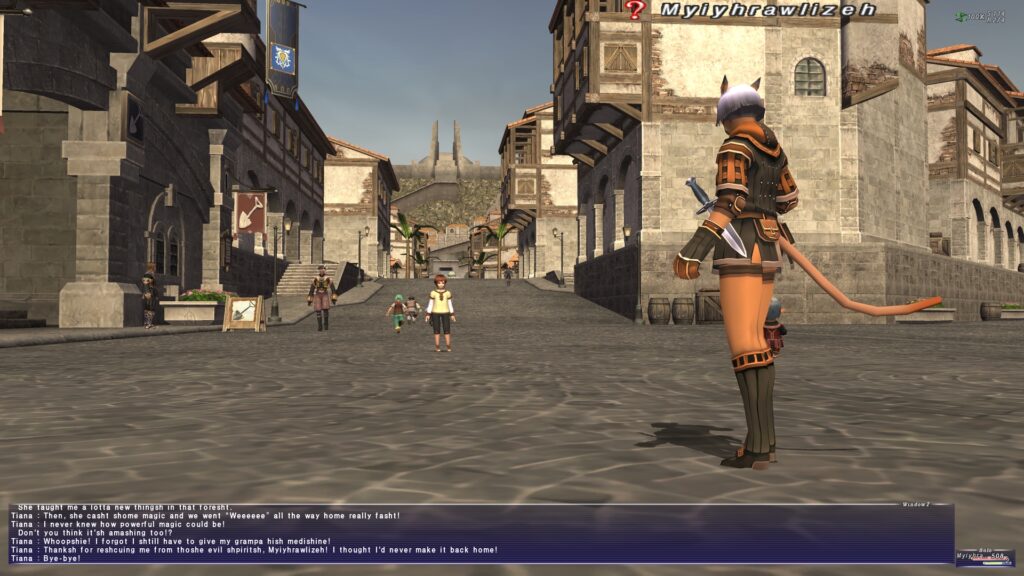
Balloon puts chat balloons on your screen when characters talk, same as Final Fantasy XIV does. Otherwise, you’ll be reading the story through a chat window at the bottom. This is far from ideal.
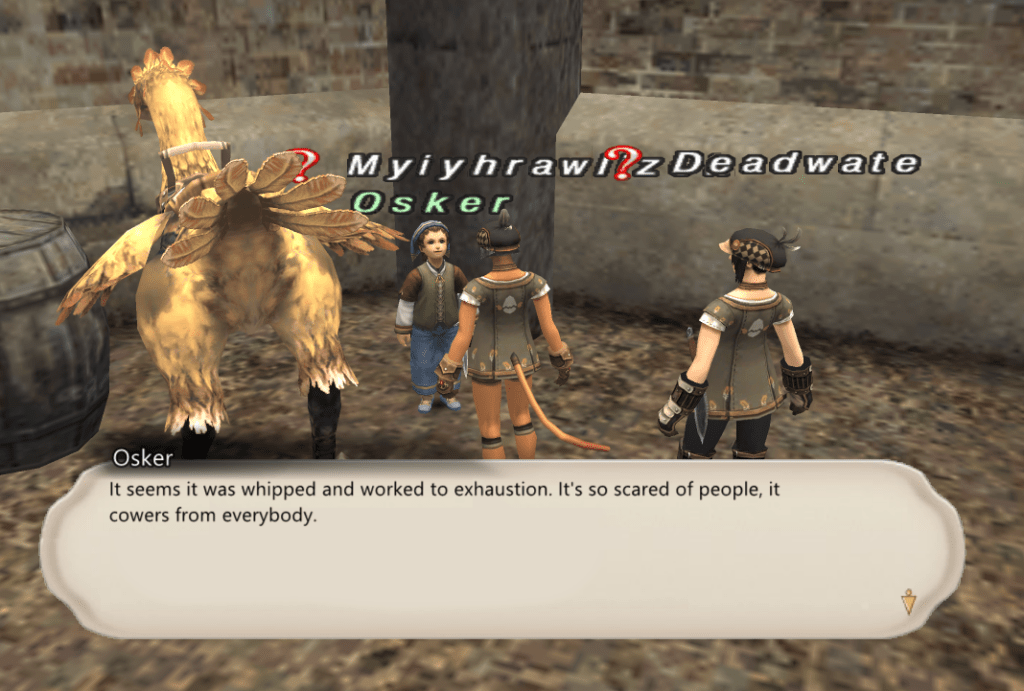
Fuckoff stops the MTG shout messages in main chat.
XivParty gives you a party screen like FFXIV.
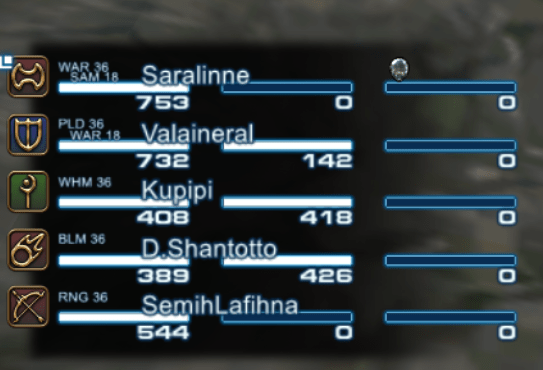
After you’ve put the folders into the Windower\addons folder, you’ll need to edit scripts\init.txt and add the following lines:
lua load balloon
lua load xipivot
lua load xivparty
lua load fuckoff
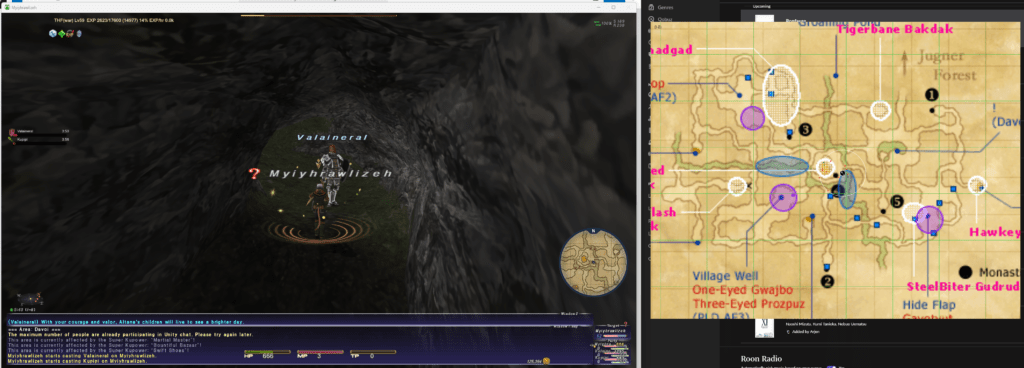
Mappy is an external application that hooks up to your game and loads a map in a window outside of the game. If you use the maps from Remapster (the ones called Map Pack 1 (Mappy)), you’ll have a nice high-res map (most of the time) that you can zoom and drag around, making it much easier to look stuff up on the fly.
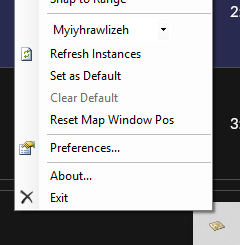
The application is very finicky though and is prone to crashing (or making the game crash!) if you do it in the wrong order. First load Mappy, then load the game and log in with your character so it’s fully loaded, then from the drop-down menu select your instance and it should work.

Both Steam and GOG offer the third FMV-game of Tex Murphy, but upon booting it turns out it doesn’t work very well in Windows 11. There are solutions offered on both the Steam and GOG forum, by installing ffdshow (that makes the videos work) and VirtualMidiSynth, but I never managed to get the sound working after troubleshooting for about 2 hours.
Luckily I had an old laptop I got last year, for the sole purpose of running Windows XP and games that wouldn’t work properly, such as Black & White. The GOG installer works fine under Windows XP, but the game would crash upon launching.
This is where my new plan came into view: installing the game using 86Box, which will run a virtual machine with Windows 98. Even that was a bit of a gamble, because Overseer is a Windows 95 game. After quite some effort, which was mostly due to finding old software (links from webpages long dead or not updated since the 2000s). I doubt I’m the only one who had a lot of trouble getting Tex Murphy: Overseer to work under Windows 11, so I’ve decided to write this guide.
A warning: it still doesn’t run perfect. It slows down sometimes, the audio can crackle and some textures don’t work properly. It’s not a great experience, but at least it’s a working game.
It’s not for those who aren’t tech savvy (or patient enough to learn as you go). I’ve included premade VMs you should be able to launch, but I haven’t tested this on anything other than my own computer.
With the package I made, you don’t need to download anything else, except for the game (but there’s a torrent included, and I’ll link to it in a moment). I suggest you download the latest stable version of 86Box and the roms, but it’s not required. This package includes 86Box b8200 and the 5.3 roms.
What else is in the package?
If there’s one thing I’ve learned to hate during my quest to getting this to work, is outdated or dead links. That’s why I’m giving you a few mirrors for the package, so this will hopefully stay up for a long time:
Download: Proton Drive | Google Drive | MEGA | Dropbox
You also need to grab the Overseer DVD. Because the game is still sold on Steam and GOG, I’m not going to directly host it myself, but you can find it on Archive.org. There is also a torrent in the package.
The reason you want the DVD is because of the FMV cutscenes. The CD version has scanlines and they run at 15 fps, on the DVD they are in much better quality and run at 30 fps. And you won’t need to swap the discs, which is just more convenient.
Alright, let’s get started!
Installing 86Box and installing Windows 98
Follow this guide (mirror). It’ll show you how to install 86Box and set up the VM. It uses a slightly older version of 86Box, but the differences are minimal. Instead of a CD-rom drive, you want to set up a 48x TOSHIBA DVD-ROM SD-M1802 1051 (ATAPI). I found the game runs slightly better with a 333 MHz processor and 128MB of RAM.
The boot disk and Windows 98 ISO are included in my package, so you don’t need to grab those again. You can find DirectX and the Voodoo drivers in my package as well. It’s possible to directly mount a folder into 86Box, so you can easily set this up.
You’ll end up with a fresh Windows 98 install with the necessary drivers. In the package there’s also a VM with a fresh Windows 98 install if you don’t want to do this part yourself.
Installing Overseer and black magic to get it working
This is where the magic is going to happen. Hopefully.
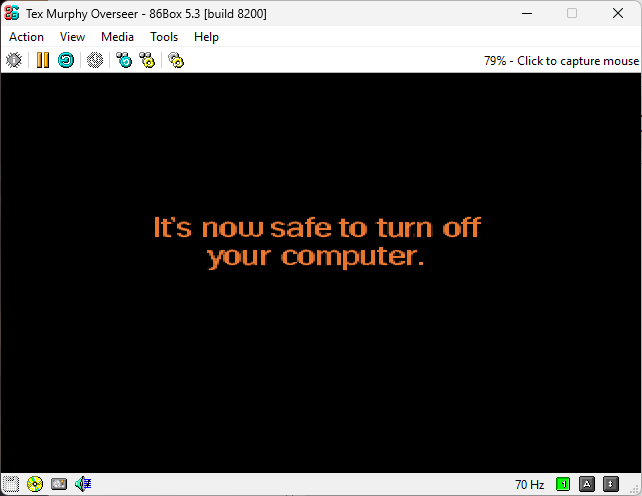
When you’re done playing, make sure to exit the game, shutdown Windows 98, and only turn off 86Box when it shows “it’s now safe to turn off your computer”. This is not a joke, Windows was a fickle wench and hard drives didn’t like sudden shutdowns.
And there you have it. With a bit of work, you should now having a working copy of Tex Murphy: Overseer.

Sources: